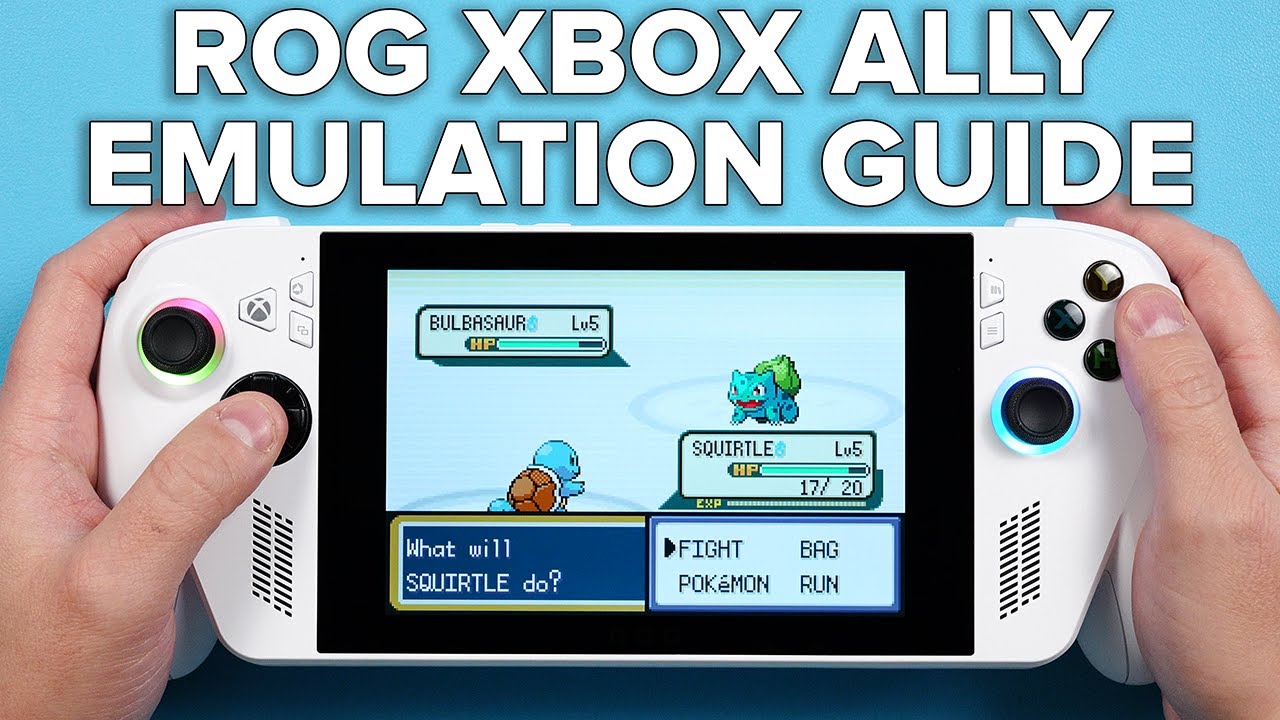

Ready to ditch the dust and jump back into the pixelated worlds of your favorite classic games? Setting up retro gaming emulation on modern devices can feel like unlocking a treasure chest of forgotten fun, but knowing where to start can be a bit of a quest in itself. Whether you're dreaming of a dedicated console hooked up to your TV or a portable powerhouse for gaming on the go, we've got you covered.
Key Takeaways
- 1Your ultimate guide to setting up retro gaming emulation.
- 2Learn the basics: emulators, ROMs, and legal acquisition.
- 3Build a dedicated Raspberry Pi 5 retro gaming console.
- 4Transform your laptop into a portable gaming machine.
- 5Master powerful tools like RetroArch for a unified experience.
Who this is for
- If you're a retro gaming enthusiast yearning for classic console experiences on modern hardware
- If you're looking for clear, step-by-step guides on setting up emulators and ROMs
- If you're a DIYer wanting to build a dedicated retro gaming machine or a portable setup
Start Learning with AI-Powered Video Summaries
Get instant summaries, ask questions, and turn any video into an interactive study session.
Try Querivo Free →Your First Steps into Emulation: Understanding the Basics
So, you've heard the term "emulation" thrown around when it comes to playing old-school games, but what exactly does it mean? This video breaks it all down in a super accessible way, making it perfect if you're an absolute beginner. It demystifies what emulation software actually is and how it works to make those classic games run on your current tech. Plus, it clarifies the often-confusing difference between emulators and ROMs (those are your game files, by the way).
You'll also get a good handle on the legal and ethical side of things, which is pretty important. The creator clearly explains how you can legitimately get your hands on ROMs, focusing on things like demos, homebrew games, and making your own backups. It’s not just about explaining the concepts; it’s about giving you a clear, responsible path to getting started. And as a bonus, you'll get an introduction to some of the popular emulators and frontends out there, giving you a roadmap for what to explore next in your retro gaming emulation setup journey.
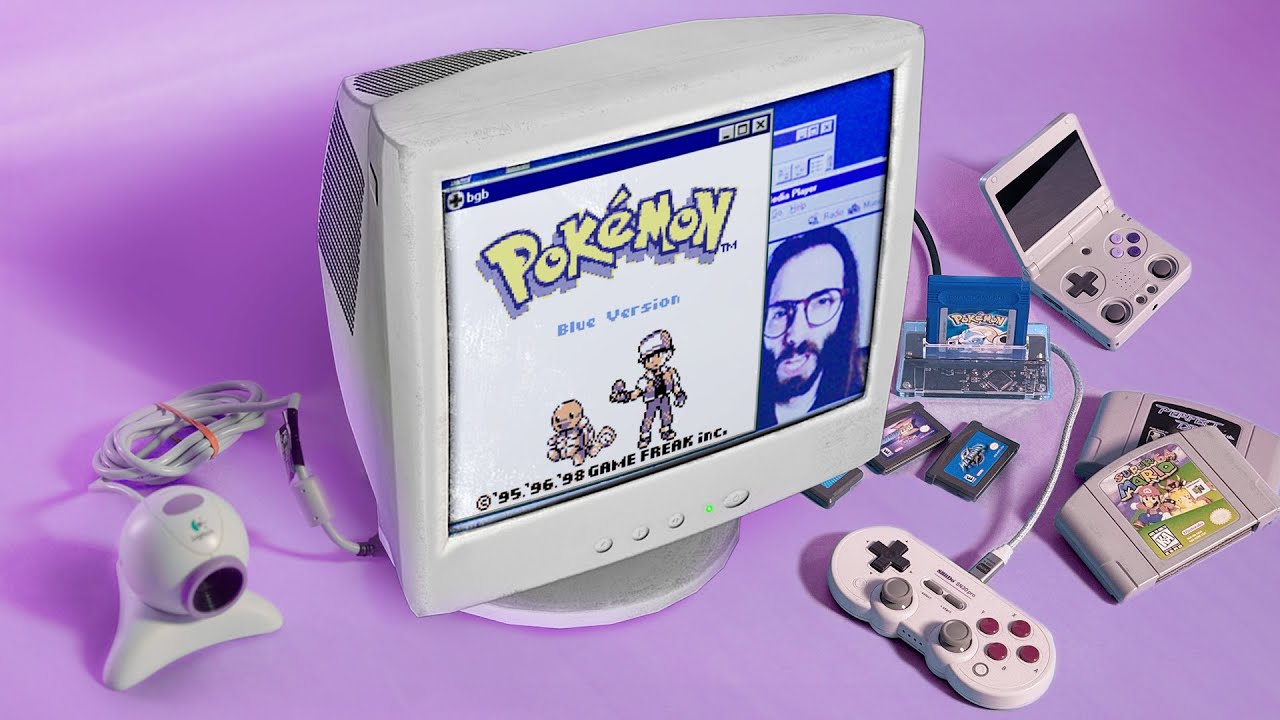
- Emulation explained simply: software mimicking old hardware.
- Understand ROMs and explore legal ways to acquire them.
Build Your Dream Retro Gaming Console with a Raspberry Pi 5
Dreaming of a dedicated retro gaming console that looks slick and performs like a champ? This video is for you! It dives deep into transforming a Raspberry Pi 5 into a powerful, purpose-built emulation machine, ideal for a permanent spot in your living room. You'll see how this little single-board computer can handle a surprisingly vast library of classic games.
The core of this guide is the step-by-step installation of the Batocera operating system. It's a really user-friendly option that’s designed specifically for retro gaming. You'll walk through setting up your controllers, whether you prefer USB or Bluetooth, for that authentic arcade or console feel. And of course, it covers the crucial step of efficiently transferring your game ROMs and gives tips on making the user interface look polished. This is seriously your blueprint for a DIY retro gaming console.
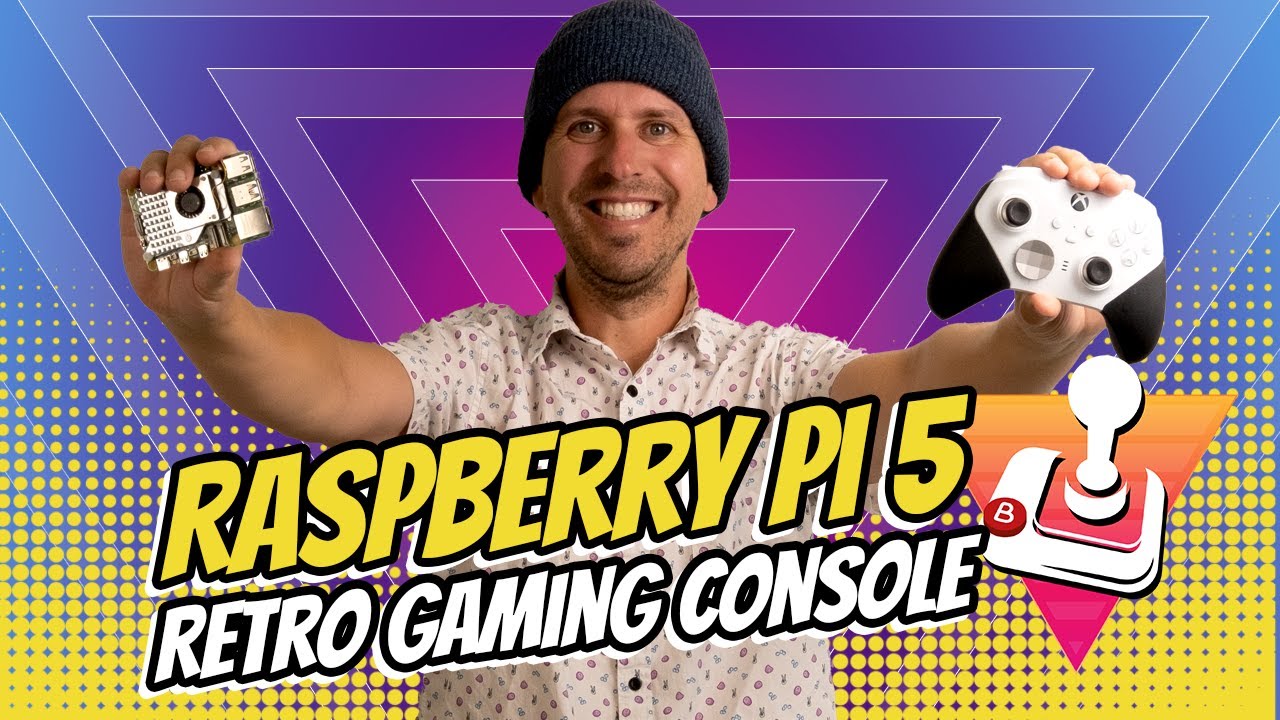
- Turn a Raspberry Pi 5 into a dedicated retro gaming console.
- Install Batocera OS and configure controllers for authentic play.
Transform Your Laptop into a Portable Retro Gaming Powerhouse
Don't have a spare Raspberry Pi lying around, but still want that retro gaming fix? No problem! This video offers a super quick and straightforward way to get a functional retro gaming environment up and running on any Windows laptop or PC. Forget about complex hardware setups; this method leverages user-friendly software to get you playing classic titles in no time.
The star here is Retrobat, a free software that seriously streamlines the entire process. You’ll learn how to install it, seamlessly add your retro game ROMs to your new library, and configure controllers so your gaming feels intuitive. It even touches on options for portable setups, like running from a USB drive or SD card, and how you can customize the system to make it truly your own. It’s a game-changer for anyone looking for a fast and easy retro gaming emulation setup YouTube resource.
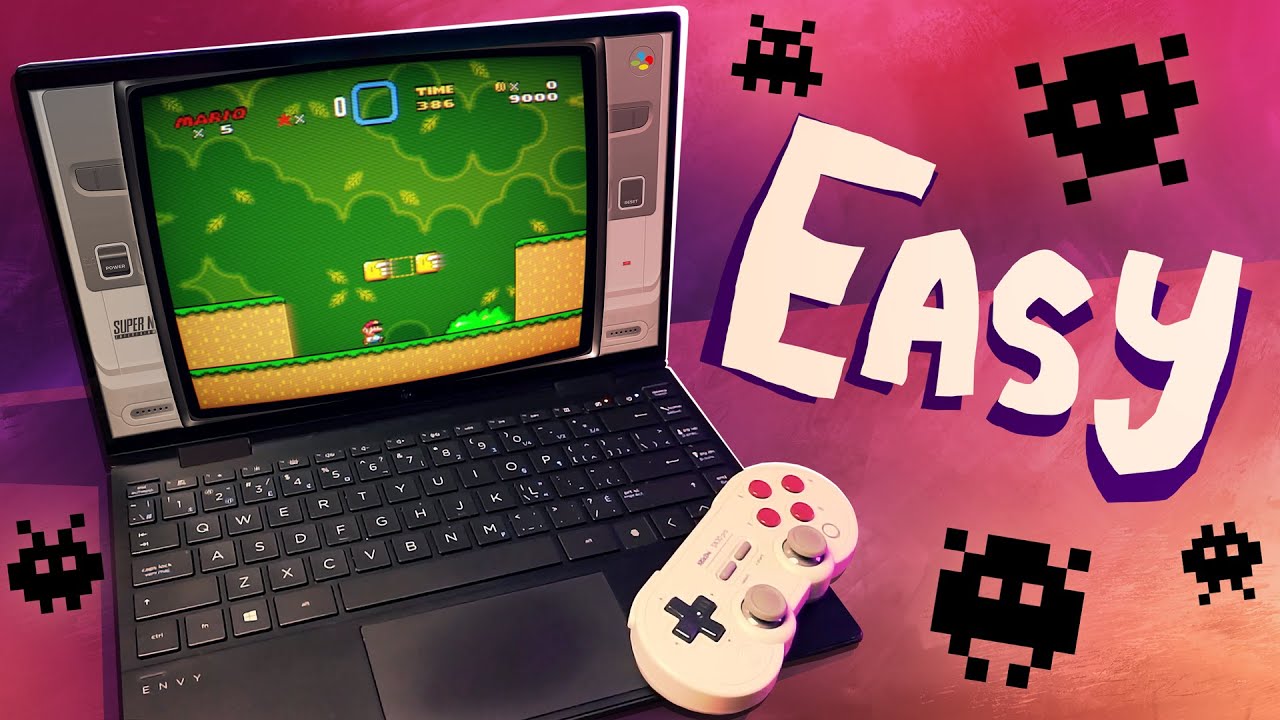
- Quickly set up retro gaming on your Windows laptop with Retrobat.
- Add ROMs and configure controllers for instant classic gaming.
Mastering RetroArch: A Universal Emulator Frontend
Ever feel overwhelmed by having to manage a bunch of different emulators for each console? RetroArch is here to simplify things, and this video provides a fantastic walkthrough of how to get it set up. It’s a powerful, all-in-one frontend that lets you manage and play games from countless emulators through a single, unified interface. Seriously, it’s a game-changer for organizing your retro gaming library.
You’ll get a clear, step-by-step guide to installing and configuring RetroArch on your PC. The creator also shows you how to customize the user interface, making it look exactly how you want. A big part of RetroArch is its 'cores' – these are essentially the individual emulators for different systems – and this video explains how to download and manage them. Plus, you'll learn how to scan your ROMs so they appear neatly organized, and explore the in-game menu for all sorts of neat features that can enhance your classic gaming sessions. It's a deep dive, but surprisingly manageable thanks to this tutorial.

- Unify your emulators with the powerful RetroArch frontend.
- Customize the interface, download cores, and organize your ROMs.
Your Next Steps
Setting up retro gaming emulation really does open up a vast universe of classic gaming possibilities. We've covered everything from grasping the fundamental concepts to building dedicated hardware and leveraging user-friendly software. These guides empower you to dive back into those cherished gaming memories with ease.
Your Action Items
- ☐Pick one video from above and watch it on Querivo
- ☐Ask questions and check summaries while watching without breaking your flow
- ☐Use the AI chat to clarify confusing parts and deepen understanding
- ☐Come back for more curated videos on topics you want to master
Ready to start your epic retro gaming journey? We recommend choosing a guide that best matches your available hardware and your comfort level with technology. Then, dive right into the immersive and nostalgic world of classic gaming!
Turn Any YouTube Video into an Interactive Lesson
Paste any video link, get an instant AI summary, and ask questions in real-time.
Try Querivo Free →Related Videos You Might Enjoy
Looking for more perspectives on this topic? Here are some additional videos worth checking out:
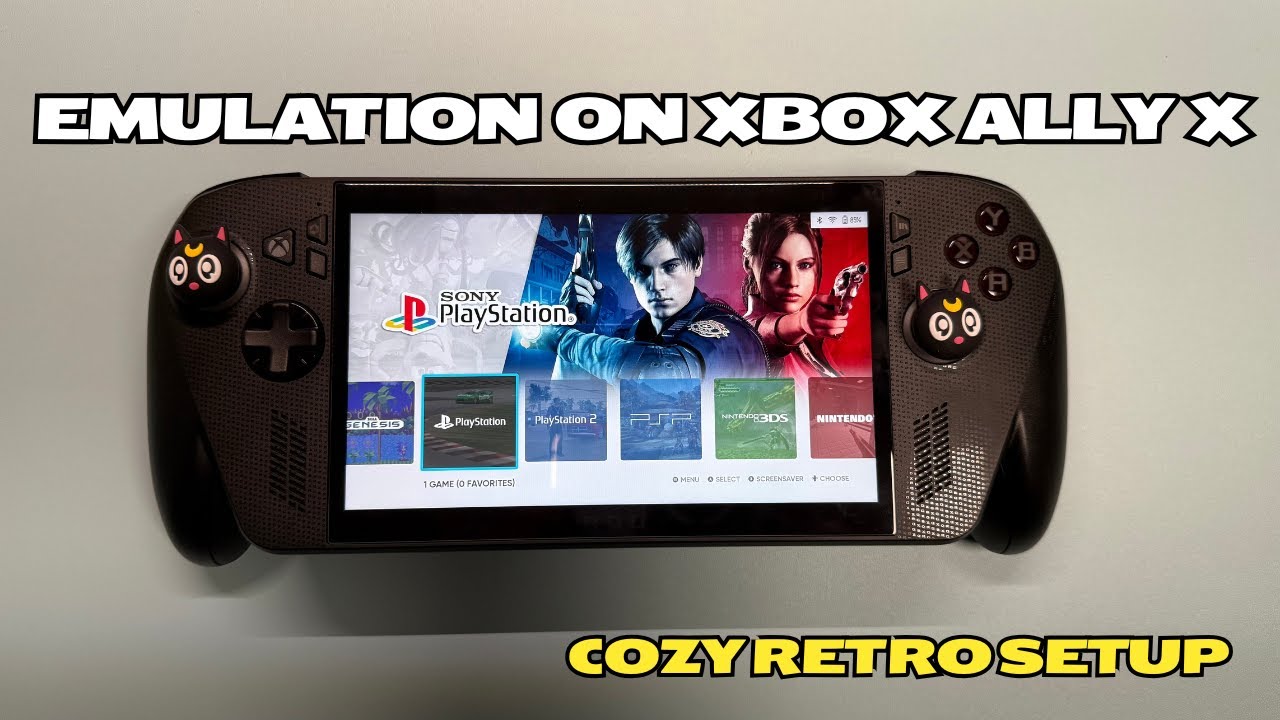
How to Set Up Emulation on the ROG Xbox Ally X | Cozy Retro Setup
This video provides a concise guide on setting up emulation on the ROG Xbox Ally X using EmuDeck and Steam ROM Manager. It covers adding emulators, organizing games, and customizing the appearance with themes and artwork for a cozy retro gaming experience.
ROG XBOX Ally/Ally X Emulation Setup Guide & Showcase!
This video provides a comprehensive guide on setting up emulators on the ROG Xbox Ally and Ally X using EmuDeck. It covers downloading and installing EmuDeck, configuring game and BIOS files, and troubleshooting common issues like Switch emulation. The guide is presented in a step-by-step manner, making it accessible for beginners.