
Ready to transform your creative vision into scalable, professional graphics that truly stand out? In the dynamic world of digital art and branding, mastering Adobe Illustrator is absolutely paramount for crafting compelling logo designs and vibrant digital creations.
Key Takeaways
- 1Your curated guide to essential Illustrator video tutorials for 2025.
- 2Master fundamental vector art principles and core Illustrator tools.
- 3Learn structured workflows for logo design and digital illustration.
- 4Convert raster images into scalable vector graphics with ease.
- 5Elevate your digital art and branding with expert techniques.
Who this is for
- If you're an aspiring graphic designer aiming to build a strong foundation,
- If you're a small business owner looking to create a professional brand identity,
- If you're a beginner curious about vector graphics and Adobe Illustrator,
Start Learning with AI-Powered Video Summaries
Get instant summaries, ask questions, and turn any video into an interactive study session.
Try Querivo Free →Mastering the Vector Illustration Workflow: From Sketch to Stunning Detail
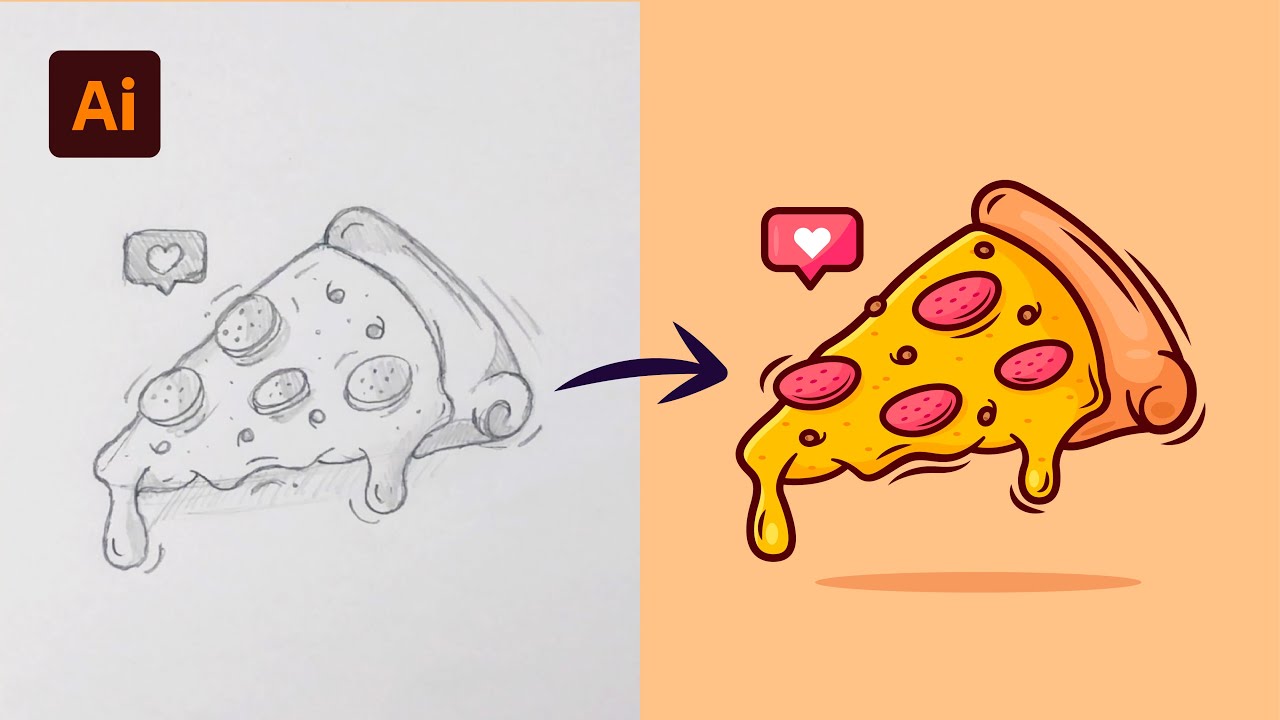
Ever feel lost when starting a new vector illustration? This video offers a refreshingly clear, four-step approach that streamlines the entire process, from that initial spark of an idea to the final, polished artwork. It's a pretty solid framework that helps you build confidence by providing a structured path.
The creator, Dan Gartman, really emphasizes the power of starting with a sketch. This isn't just about doodling; it's about laying down strong compositional and geometric foundations. You'll then see how to efficiently outline these shapes using Illustrator's robust tools. After that, it’s all about strategic color palette selection and application to really make your piece pop. And finally, the magic happens as you infuse your unique style and those crucial personal details that make your vector art truly yours.
This tutorial is a game-changer for anyone who wants a repeatable method. It’s perfect if you're a beginner feeling overwhelmed or an intermediate artist looking to refine your workflow. You’ll discover how to approach a project systematically, ensuring you don't miss any crucial steps.

- Learn a repeatable 4-step workflow for vector illustrations.
- Start by sketching for composition and then refine with Illustrator tools.
Study This Video Deeper
Get an AI summary and ask questions about confusing parts in real-time.
Open in Querivo →Demystifying Vector Art: Your Foundational Guide to Illustrator Creation
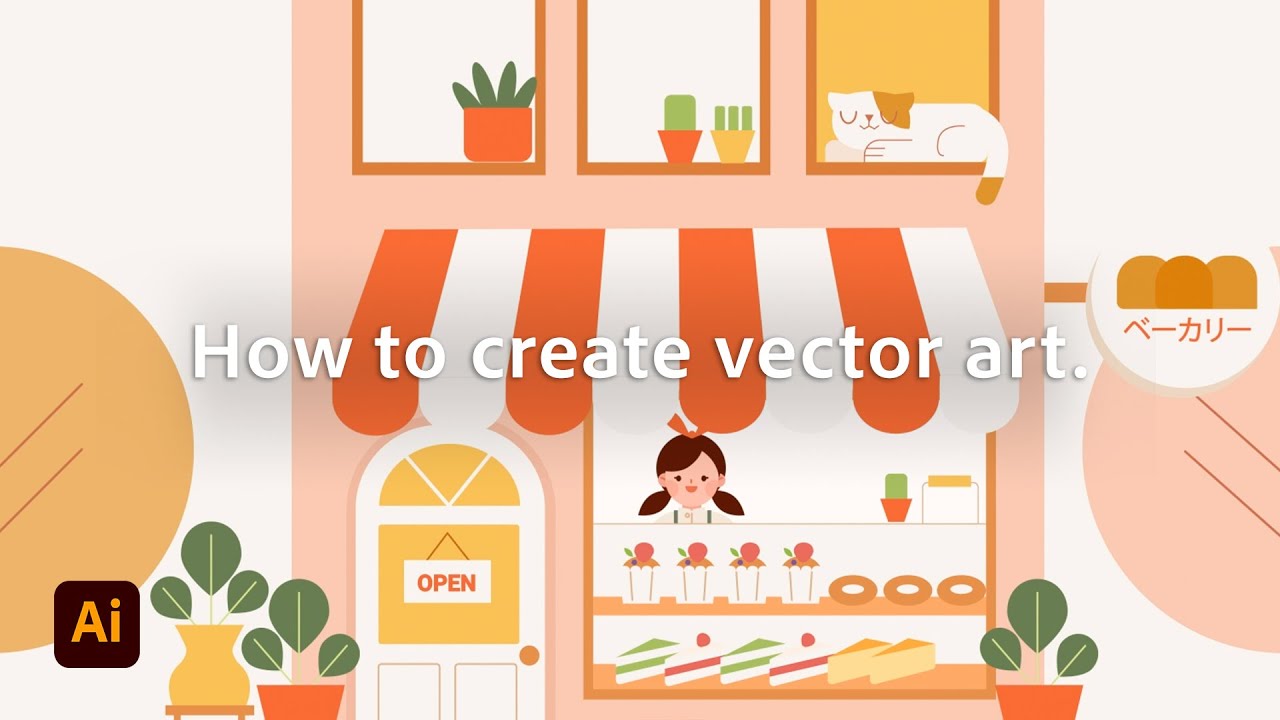
So, what exactly is vector art, and how do you actually start making it? This video tackles those fundamental questions head-on, offering a beginner-friendly walkthrough that will get you creating your first vector illustrations in Adobe Illustrator without a hitch. It's surprisingly accessible, making complex concepts easy to grasp.
You'll begin by understanding the core principles that make vector graphics so powerful – scalability without losing quality, for starters. Then, the tutorial guides you through planning and sketching your initial ideas, showing you how to use basic shapes as building blocks for more intricate designs. Applying essential coloring techniques is also covered, ensuring your creations look vibrant. Plus, you'll get tips on refining your designs with those crucial detailed additions that give them a professional finish.
This is definitely worth watching if you're completely new to vector art or digital illustration. The creator, from Adobe Asia Pacific, breaks it down into digestible steps that build upon each other. You'll leave with a solid understanding of the basics and the confidence to start experimenting.
- Grasp the core principles of vector art and its benefits.
- Practice building illustrations using basic shapes and essential coloring.
Effortless Image Vectorization: Convert Raster to Scalable Graphics
Got a cool raster image or a hand-drawn sketch you want to turn into a crisp, scalable vector logo or graphic? This video is your go-to resource. It specifically focuses on leveraging Adobe Illustrator's powerful Image Trace feature, which is an absolute lifesaver for recreating existing artwork or repurposing designs for different mediums.
The creator, Andy Tells Things, really dives into streamlining the vectorization process. You’ll learn essential background removal techniques, which often happens in conjunction with Adobe Photoshop, before you even get to tracing. Then, it’s all about optimizing those Image Trace presets and understanding the advanced settings that work best for all sorts of image types, from photos to simple drawings. Polishing the vectorized results using the Simplify and Smooth Path tools is also key here. And importantly, you'll discover how to ensure transparent backgrounds for a clean export, usually as a PNG file.
This tutorial is a must-watch for anyone who needs to digitize existing artwork or logos. It’s incredibly practical and saves a ton of time compared to manual tracing. You’ll definitely appreciate the efficiency it brings to your workflow, especially when dealing with Illustrator logo design projects.
- Learn to convert raster images into scalable vector graphics.
- Master Illustrator's Image Trace and essential refinement tools.
Crafting Clean Flat Designs: Step-by-Step Vector Object Creation
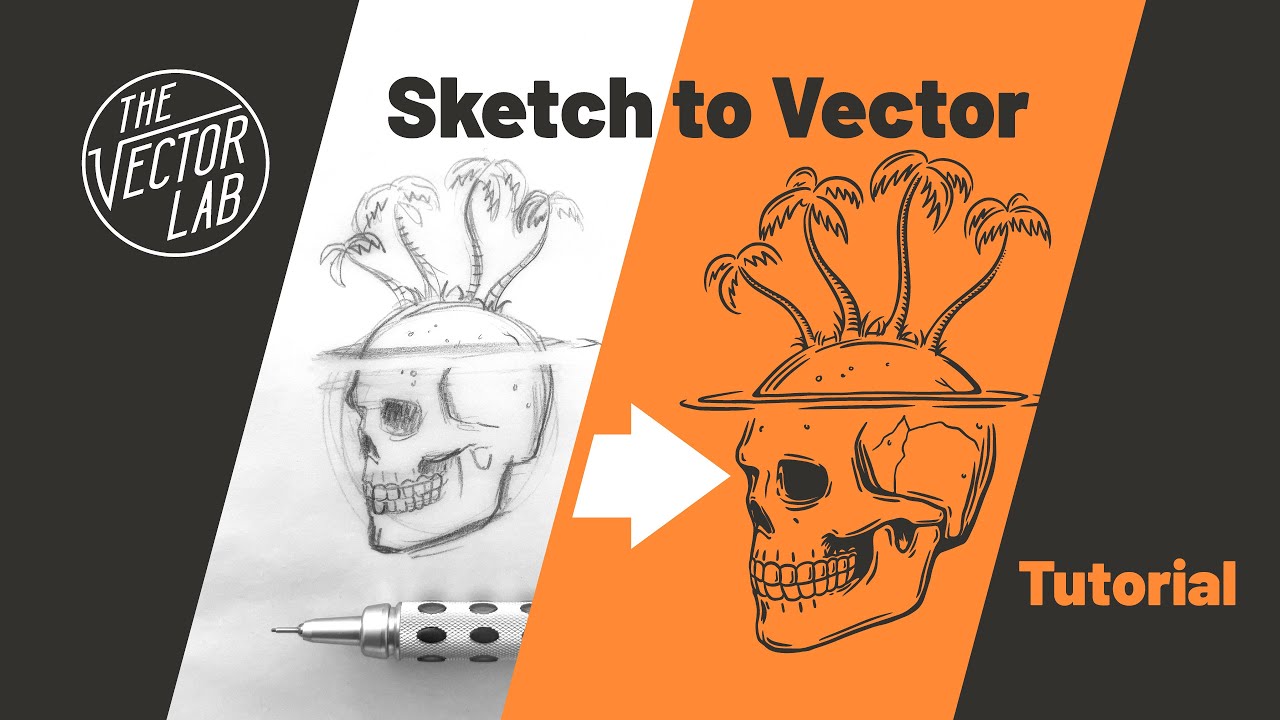
Creating clean, modern flat design illustrations from scratch can seem intimidating, but this video makes it surprisingly straightforward. It guides beginners through the entire process in Adobe Illustrator, focusing on an organized workflow and essential tool usage that builds from the ground up.
The tutorial emphasizes the importance of organizing your work with layers – this is huge for keeping track of your reference, outlines, and color elements. You'll then build vector shapes with precision using tools like the Oval, Pen, and Direct Selection tools. Achieving that perfect symmetry and those crisp, clean lines is made easier with a look at the Reflect tool and the incredibly useful Shape Builder. Applying flat colors efficiently is also covered, often using the Live Paint Bucket tool. Plus, you’ll get insights into adding subtle depth and visual interest with strategic shadows and highlights.
This video is fantastic for aspiring graphic designers or anyone who wants to create polished, flat-style digital art. The step-by-step approach ensures you're not just following along but truly understanding how each element comes together. It’s a solid foundation for anyone looking into Illustrator logo design, icons, or character art.
- Build clean, professional flat design illustrations from scratch.
- Utilize layers, shape tools, and coloring techniques for polished results.
Your Next Steps
By diving into these foundational techniques from our curated selection of YouTube tutorials, you're now exceptionally well-equipped to create professional vector graphics for both logo design and digital art. Remember the immense value of a structured workflow, truly understanding vector art's core principles, and effectively wielding Illustrator's powerful, versatile tools. The world of digital art and branding is at your fingertips.
Your Action Items
- ☐Pick one video from above and watch it on Querivo
- ☐Ask questions and check summaries while watching without breaking your flow
- ☐Use the AI chat to clarify confusing parts and deepen understanding
- ☐Come back for more curated videos on topics you want to master
Ready to put your newfound knowledge to the test and start crafting amazing designs? Dive in and explore these essential Illustrator vector graphics tutorials.
Turn Any YouTube Video into an Interactive Lesson
Paste any video link, get an instant AI summary, and ask questions in real-time.
Try Querivo Free →Related Videos You Might Enjoy
Looking for more perspectives on this topic? Here are some additional videos worth checking out:
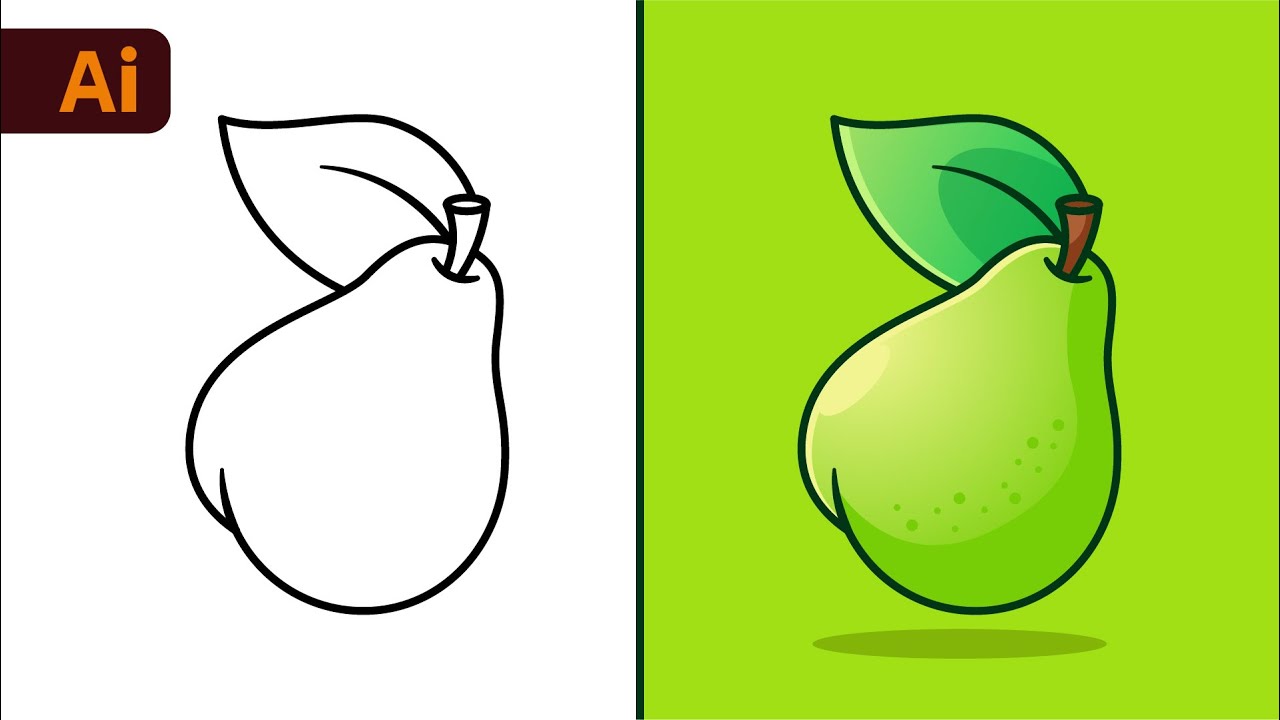
Adobe Illustrator Beginner Tutorial: Create a Vector Pear from Sketch (HD)
This Adobe Illustrator tutorial guides beginners through transforming a hand-drawn sketch of a pear into a vibrant, flat vector illustration. It covers essential tools like the Pen tool, Shape Builder, and Width tool for outlining, coloring, and adding depth with gradients, shadows, and highlights.
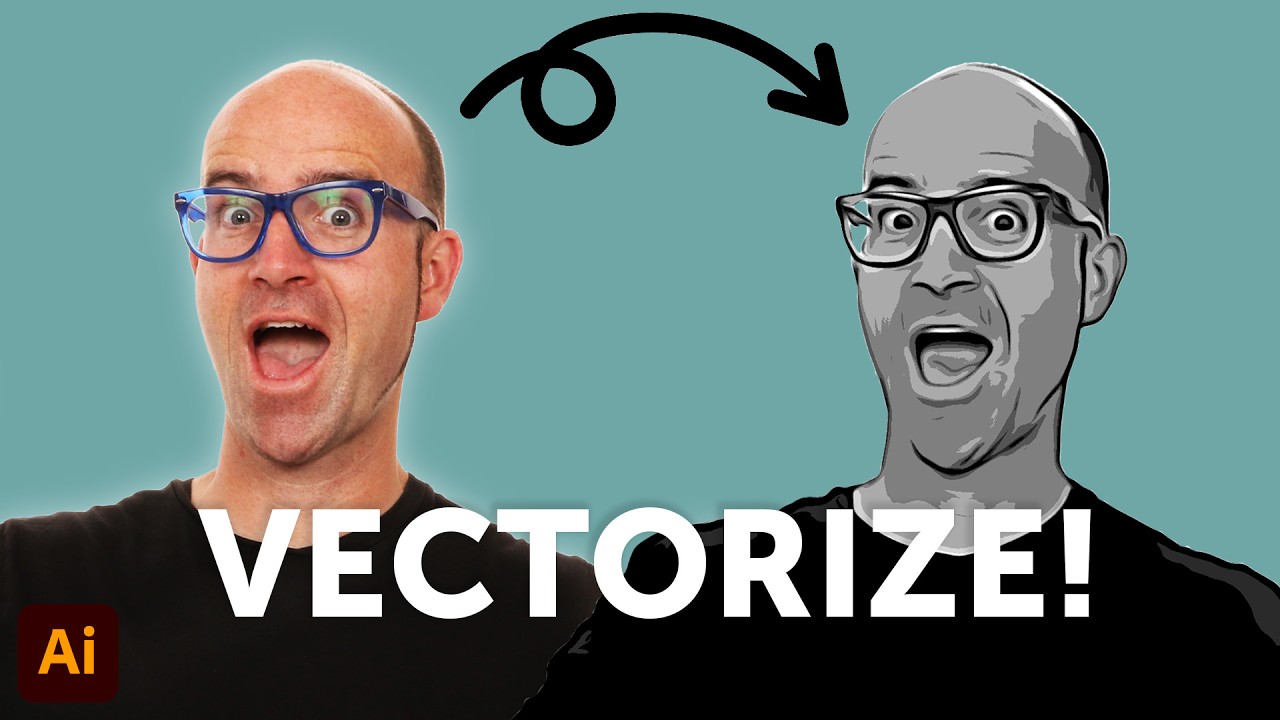
How to Vectorize an Image in Illustrator | Updated for 2025
This video tutorial demonstrates how to effectively vectorize images in Adobe Illustrator using the Image Trace feature. It covers a three-step system that includes removing backgrounds in Photoshop, applying Image Trace with specific color settings and advanced options, and then refining the vectorized image using simplify and smooth path tools to achieve a polished, less illustrative look.
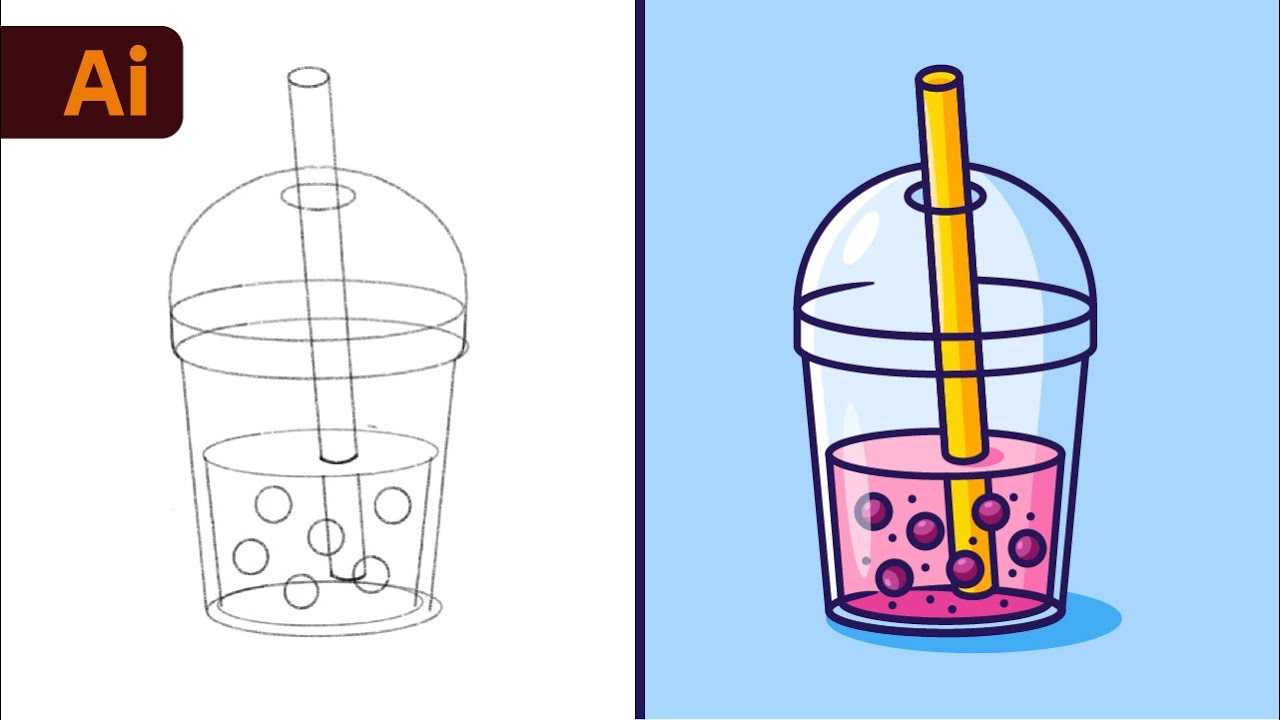
Adobe Illustrator Tutorial- Create a Bubble Tea Vector Step by Step
This Adobe Illustrator tutorial demonstrates how to create a clean, flat design vector of a bubble tea cup from scratch. The video guides viewers through outlining the cup, straw, and liquid, applying base colors, and then adding shadows and highlights for depth and visual interest.
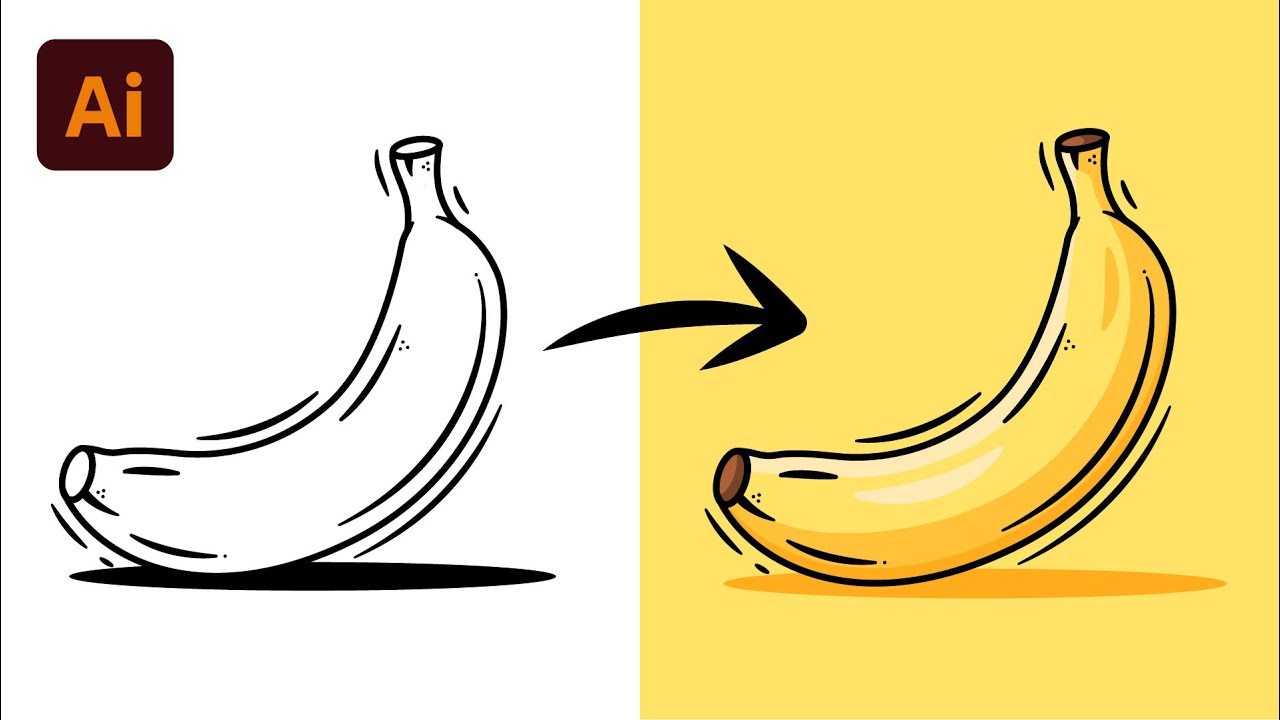
Adobe Illustrator Tutorial - Create a Banana Vector (HD)
This Adobe Illustrator tutorial teaches viewers how to create a flat design vector illustration of a banana from a reference image. It covers outlining the shape, utilizing the Shape Builder tool for segmentation, adding line details with the Offset Path and Width tools, and applying colors with shadows and highlights.
Let's Draw Beauty! Vector Portrait Illustration (Free & Easy) in Adobe illustrator 🔥
This video showcases a time-lapse creation of a vector portrait illustration in Adobe Illustrator. It demonstrates the process of transforming a photograph into a stylized digital artwork, focusing on the detailed rendering of facial features and hair.

How To Make Vector Art in Adobe Fresco! From Sketch to Finished Products.
This video demonstrates how to create versatile vector art in Adobe Fresco on an iPad, starting from a hand-drawn sketch to a finished product. It highlights Fresco's vector capabilities, including smooth line drawing and the unique 'Vector Trimming' tool for clean edges, making professional vector work accessible.
How to Use the Pen Tool in Adobe Illustrator
This Adobe Illustrator tutorial goes beyond just the Pen Tool, teaching viewers to master its use by incorporating companion tools like the Anchor Point Tool and understanding modifier keys like Shift and Alt. It emphasizes intuitive drawing by placing anchor points strategically and breaking handles for sharp corners, ultimately aiming to make vector creation more efficient and instinctive.
Adobe Illustrator Tutorial: Create a Vector Pizza from Sketch (HD)
This Adobe Illustrator tutorial demonstrates how to transform a hand-drawn sketch of a pizza slice into a vibrant vector illustration. The process involves importing the sketch, outlining it with the Pen Tool, refining lines with the Width Tool, and adding color and details using the Shape Builder and Offset Path features.