
Tired of static presentations? Imagine transforming your PowerPoint slides into dynamic, engaging explainer videos that captivate your audience!
Key Takeaways
- 1Master PowerPoint for video creation
- 2Animate slides like a pro
- 3Convert presentations to video
- 4Add narration and export easily
- 5Create professional explainer videos
Who this is for
- If you're a marketer struggling to create engaging video content on a budget
- If you're an educator looking for an accessible way to explain complex topics visually
- If you're a content creator familiar with PowerPoint but new to video production
Start Learning with AI-Powered Video Summaries
Get instant summaries, ask questions, and turn any video into an interactive study session.
Try Querivo Free →In today's digital landscape, video content is king. Marketers, educators, and content creators are constantly seeking accessible and cost-effective ways to produce compelling explainer videos. While dedicated video editing software can be intimidating, many overlook the powerful video creation capabilities already built into Microsoft PowerPoint.
This guide leverages top YouTube tutorials to walk you through the process of creating impressive explainer videos using PowerPoint. From mastering the interface to employing advanced animation techniques and exporting your final masterpiece, discover how to elevate your content creation game without leaving your familiar presentation software. You'll discover how to effectively create a PowerPoint explainer video using YouTube resources.
Master PowerPoint's Basics for Explainer Video Foundations
Ready to dive into the world of PowerPoint explainer video creation? This first video is your essential starting point. It breaks down the core functionalities of PowerPoint, showing you how to navigate the interface with confidence. Whether you're a complete beginner or need a refresher, this tutorial covers everything from starting a new presentation to organizing your slides for a clear narrative flow. The creator offers a complete beginner's journey, starting from the very first click, and covers a broad range of fundamental features in a clear and digestible manner. Its relatively short duration makes it an accessible starting point for new users, ensuring you build a solid foundation before diving into more complex techniques. We'll explore how to add and format text and images effectively, ensuring your message is conveyed clearly and professionally. Plus, you'll learn to apply basic transitions and animations, giving your presentation that initial spark of visual interest needed for any explainer.
How to Use Microsoft PowerPoint (Step-by-Step Guide for 2025)
Watch with Querivo →- Get comfortable navigating PowerPoint's interface
- Learn to structure slides for a compelling story
- Add and format text/images effectively
Bring Your Explainer Video to Life with Dynamic Animations
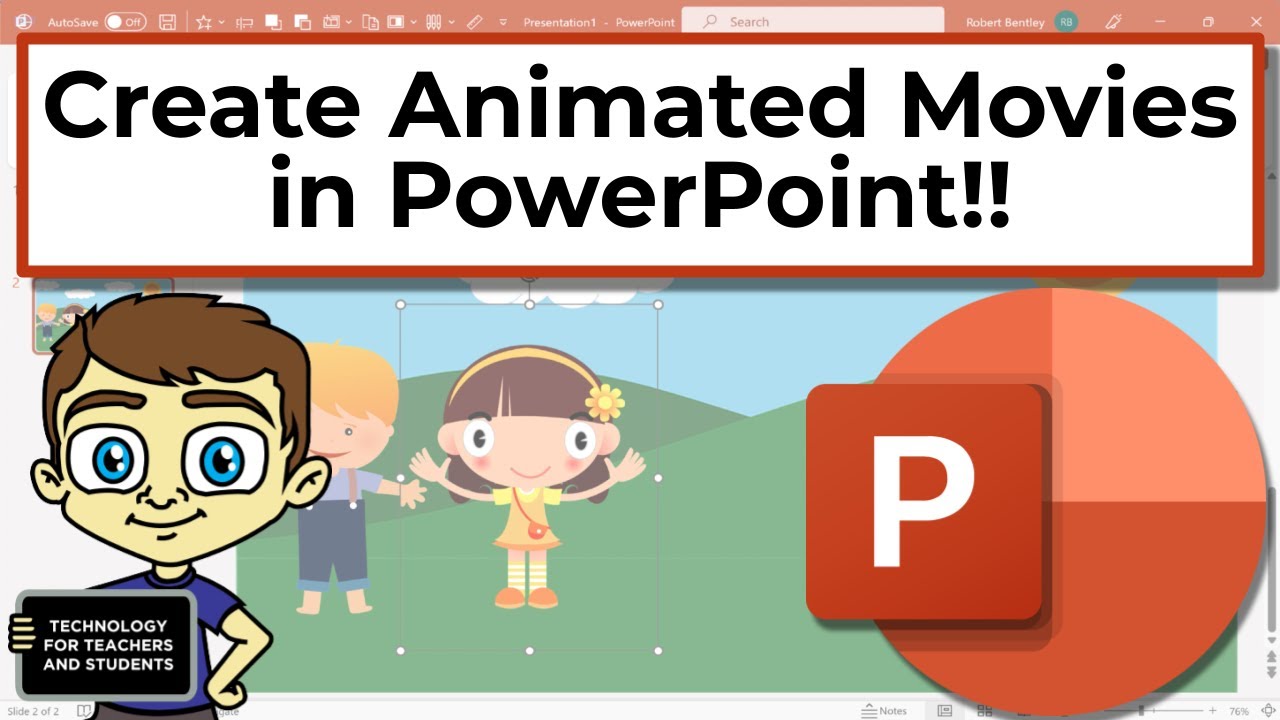
Now that we've got the basics down, it's time to make your explainer video truly shine! This next tutorial dives deep into PowerPoint's surprisingly robust animation features. You'll learn how to source appropriate visuals, including those all-important transparent PNG images that give your graphics a clean, professional look. The creator highlights the underutilized animation capabilities within PowerPoint, showing users how to leverage this common software for creative animation tasks. You'll discover practical techniques for image sourcing and applying a range of animation types, from entrance and emphasis effects to exit animations and motion paths. But the real magic happens when you start creating custom movement – imagine characters walking across the screen or objects interacting dynamically. This is where you'll really see how a PowerPoint explainer video can become visually engaging.
- Source and use transparent PNG images
- Apply various animation types for movement
- Create custom motion paths for dynamic effects
Transforming Your Presentation into a Shareable Video
You've built a fantastic animated presentation; now, how do you turn it into a video file ready for YouTube? This section is all about the crucial conversion process. It guides you through the steps to export your meticulously crafted PowerPoint slides into a format that audiences can easily watch and share. The video showcases how to achieve professional-looking animations using PowerPoint, which might be overlooked by many users, offering an accessible alternative to specialized animation software. We're talking about taking your static slides and breathing life into them, making them dynamic visual stories. You'll see how to effectively incorporate text, shapes, tables, and charts, and add media to enhance your message. This resource focuses on those final touches that elevate your content from a presentation to a polished video product, providing a clear path to share your creations.
- Understand the process of creating animated presentations
- Incorporate various content types for visual appeal
- Prepare your presentation for video export
Adding Narration and Exporting Your Explainer Video
The final step in creating your compelling PowerPoint explainer video YouTube content is adding your voice and then exporting it. This tutorial covers precisely that. You'll learn how to record narration directly within PowerPoint, adding that essential personal touch to your explainer. Plus, if you want to appear on screen, you can even record webcam footage. The creator offers a highly condensed yet comprehensive overview of essential PowerPoint features within a short 13-minute timeframe, making it ideal for quick learning or refreshing knowledge on the final stages of production. We'll explore how to use annotations and timings to ensure your video flows smoothly and professionally. And, of course, the ultimate goal: exporting your finished masterpiece as an MP4 video file, perfectly optimized for uploading to YouTube and sharing with your audience. This is where all your hard work comes together to create a shareable explainer video.
![Microsoft PowerPoint - Presentation Tutorial in 13 MINS! [ COMPLETE ]](https://img.youtube.com/vi/DzPhjLPLLeg/maxresdefault.jpg)
- Record narration and webcam footage within PowerPoint
- Polish your video with annotations and timings
- Export your presentation as a shareable MP4 video
Your Next Steps
You've learned that PowerPoint is a surprisingly powerful tool for creating engaging explainer videos. By mastering its interface, leveraging animation features, and understanding the conversion process, you can produce professional-looking video content without specialized software. It's definitely worth checking out how versatile PowerPoint can be! These resources provide a clear pathway from fundamental slide creation to dynamic animation and final video export. By applying the practical tips within these tutorials, you can begin to craft your own captivating explainer videos, making your content more accessible and engaging for any audience.
Your Action Items
- ☐Pick one video from above and watch it on Querivo
- ☐Ask questions and check summaries while watching without breaking your flow
- ☐Use the AI chat to clarify confusing parts and deepen understanding
- ☐Come back for more curated videos on topics you want to master
Ready to start creating? Open up PowerPoint and begin transforming your ideas into captivating explainer videos today! Practice the techniques learned from these tutorials, experiment with different animations and transitions, and start building your first explainer video. Don't forget to explore the related videos for additional tips and inspiration!
Turn Any YouTube Video into an Interactive Lesson
Paste any video link, get an instant AI summary, and ask questions in real-time.
Try Querivo Free →Related Videos You Might Enjoy
Looking for more perspectives on this topic? Here are some additional videos worth checking out:
5 ways to make BETTER PowerPoint PRESENTATIONS in 2025 💯
How To Create Animations For Your Math Lessons
This video demonstrates how to create engaging math lesson animations using presentation software like Apple Keynote. It introduces the "Magic Move" transition as a simple yet powerful tool for animating objects and conveying mathematical concepts visually.
how to make whiteboard animation video in Canva || whiteboard animation tutorial
This video tutorial demonstrates how to create free whiteboard animation videos using Canva. It covers finding sketch elements, assembling them into a scene, and then using Canva's Speed Paint app (which requires a paid plan or trial) to animate the image with a sketching hand effect. The tutorial also provides two external websites for generating free sketch images.

How to Make a Video in PowerPoint - ppt to video
This video tutorial demonstrates how to transform a PowerPoint presentation into a video. It covers recording narration, adding webcam video, utilizing annotations, and exporting the final presentation as an MP4 file ready for upload to platforms like YouTube.
PRO Animated PowerPoint Presentation - Easy Tutorial
This tutorial teaches viewers how to create a visually appealing and fully customizable five-step animated PowerPoint presentation from scratch. It covers slide creation, content addition, and animating the elements to create a dynamic effect.

Create Cartoon Animation Video on PowerPoint | Make Animation Scene in PowerPoint
This video tutorial demonstrates how to create cartoon animation scenes and videos entirely within Microsoft PowerPoint. It guides viewers through adding shapes for backgrounds, inserting PNG and GIF images for characters and elements, and applying motion path animations to bring the scene to life.

5 Best Morph Transitions in PowerPoint 2025 🔥 - Easy Step-by-Step Tutorial
This video tutorial demonstrates five distinct and visually engaging ways to utilize PowerPoint's Morph transition effect. It provides step-by-step instructions for creating dynamic slide transitions like flying text, multi-panel reveals, and zoom effects, aimed at enhancing presentation professionalism.