
Tired of static designs that don't quite capture the user's journey? Learn to breathe life into your user interfaces with dynamic, interactive prototypes.
Key Takeaways
- 1Master Figma prototyping for interactive designs.
- 2Build realistic user flows and engaging experiences.
- 3Learn advanced animations and micro-interactions.
- 4Test and refine your designs with valuable feedback.
- 5Transform flat mockups into living prototypes.
Who this is for
- If you're a UI/UX designer struggling to communicate your vision beyond static screens
- If you're a product owner who needs to quickly test user journeys before development
- If you're a design student looking to build a strong portfolio with interactive elements
Start Learning with AI-Powered Video Summaries
Get instant summaries, ask questions, and turn any video into an interactive study session.
Try Querivo Free →Master the Fundamentals of Interactive Prototyping in Figma
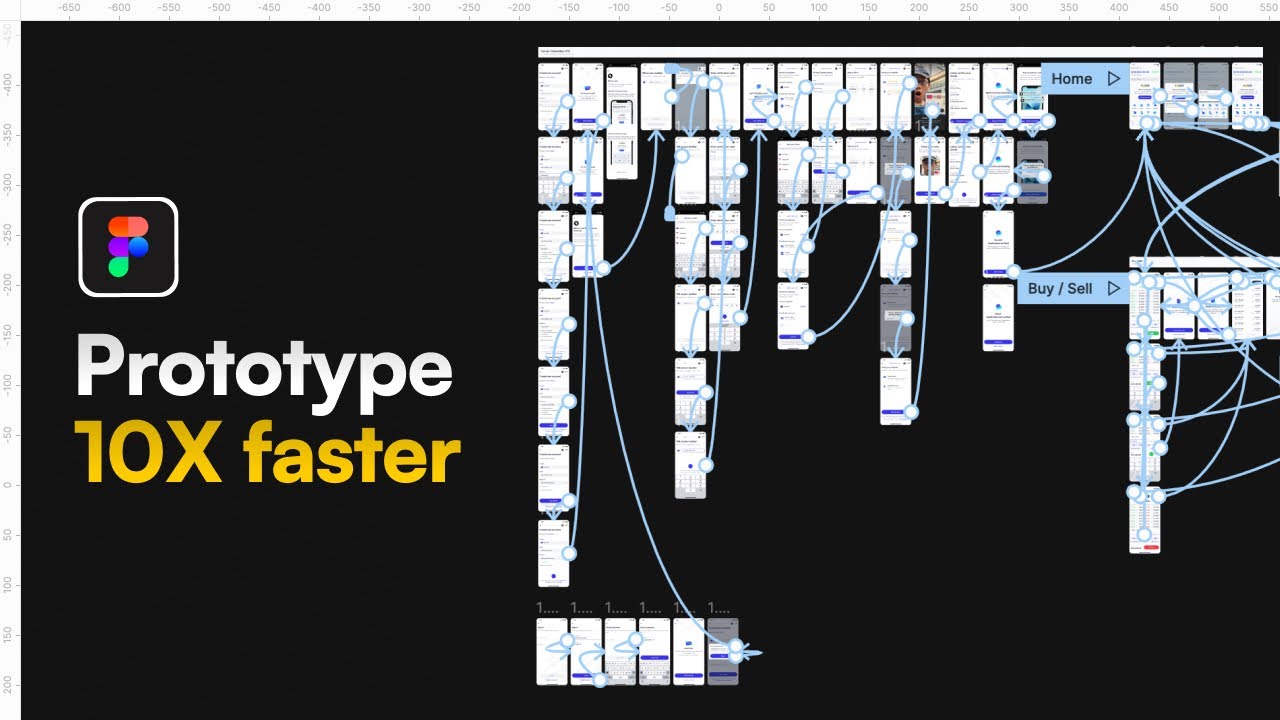
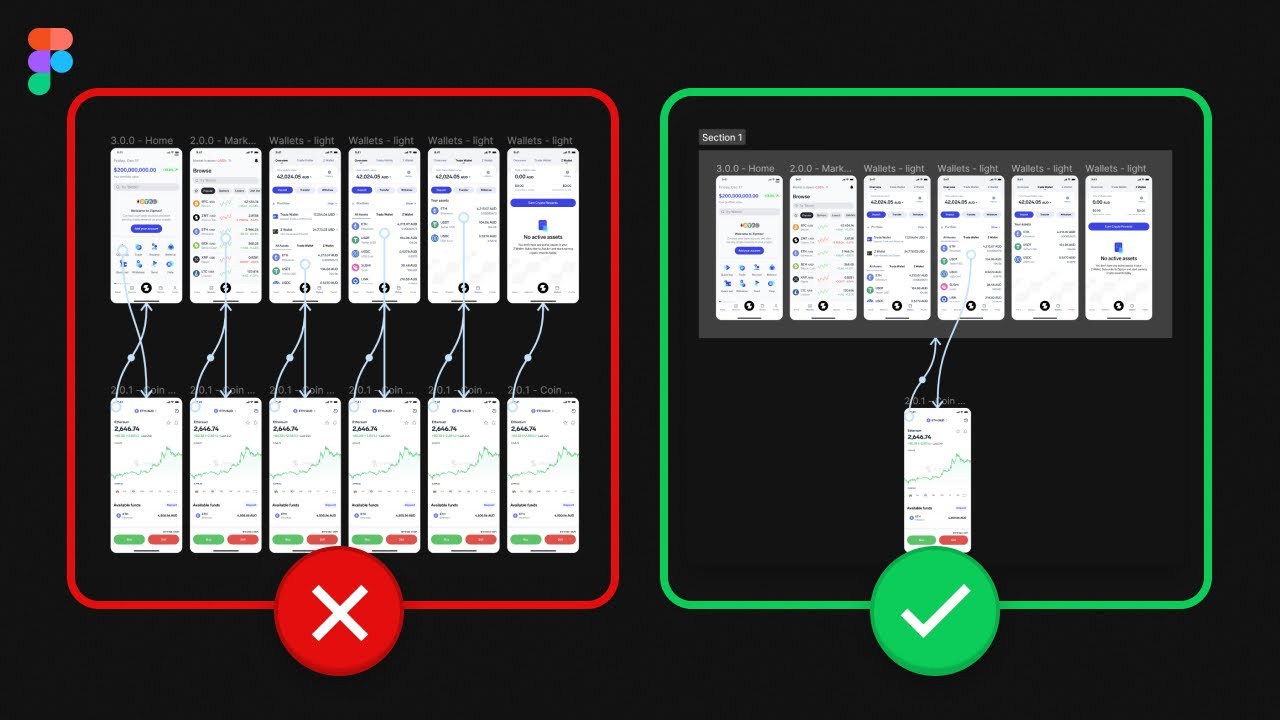
Static designs are a thing of the past. To truly understand how users will interact with your product, you need to create dynamic prototypes. This video breaks down the essential building blocks of Figma prototyping, making it accessible even if you're just starting out. We'll cover how to connect your design screens seamlessly, transforming a series of frames into a navigable user flow.
You'll discover how to apply basic animations and transitions, like the 'Move in' and 'Push' options, to give your prototype a sense of motion and polish. Plus, the introduction to 'Smart Animate' is a game-changer for creating sophisticated, fluid movements between screens without a ton of extra work. It's surprisingly effective at making your designs feel alive.
Beyond just building the flow, this tutorial also touches on the crucial aspect of gathering feedback. You'll learn how to use comments and observation mode directly within Figma, which is incredibly helpful for iterating on your designs and ensuring they meet user needs. It’s about making your prototypes not just look good, but work well in practice.
- Connect screens and frames to build basic user flows.
- Use 'Move in', 'Push', and 'Smart Animate' for fluid transitions.
- Leverage comments and observation mode for feedback.
Bring Your Designs to Life with Figma's Smart Animate and Overlays
Ready to move beyond simple screen-to-screen transitions? This video takes your Figma prototyping skills up a notch, focusing on more advanced animation techniques and the strategic use of overlays. Overlays are incredibly powerful for simulating things like modal windows, pop-ups, and dropdown menus – all essential components of modern user interfaces.
You'll dive deeper into the magic of Smart Animate, learning how to create more complex and engaging visual effects. This is where your designs really start to feel polished and professional. We're talking about subtle micro-interactions that add delight and improve usability, making the whole experience feel more intuitive and responsive.
The creator walks you through linking more complex interactions, giving you a taste of how to build conditional logic into your prototypes. This is super useful for testing more nuanced user scenarios and ensuring your design handles different situations gracefully. It's definitely worth watching if you want to add that extra layer of realism to your interactive designs.
- Master advanced Smart Animate for sophisticated motion.
- Implement overlays for modals, pop-ups, and dropdowns.
- Design delightful micro-interactions that enhance UX.
Craft Realistic User Flows: From Simple Clicks to Complex Interactions
Building out a complete user journey can feel daunting, but this video makes it much more manageable. The focus here is on structuring and connecting numerous frames to create comprehensive user paths. You'll learn how to design for different states and scenarios, which is critical for simulating real-world user behavior and testing edge cases.
This tutorial really emphasizes clarity and intuitiveness in your design. By using Figma's prototyping features effectively, you're not just linking screens; you're guiding users through tasks in a logical and effortless way. It helps ensure that your final product will be easy to navigate and understand, reducing potential user frustration.
If you've ever struggled with mapping out complex user journeys or ensuring smooth progression between different parts of an application, this video is a must-watch. It provides a solid framework for designing user flows that are both robust and user-friendly, really cementing the practical application of Figma prototyping.
- Structure and connect numerous frames for complex user paths.
- Design for various states and scenarios within a flow.
- Ensure logical progression and ease of navigation for users.
Elevate Your Prototypes: Advanced Animation and Micro-Interaction Techniques
Want to add that professional polish and wow factor to your prototypes? This video explores advanced animation techniques that can truly elevate your designs. We're not just talking about making things move; it's about using motion to enhance usability, guide attention, and create moments of delight for the user.
You’ll get to grips with implementing scroll-based animations and even parallax effects, adding depth and dynamism to your designs. Plus, the tutorial covers designing interactive elements like toggles, sliders, and custom buttons, which are crucial for creating rich and responsive user experiences. It shows you how to go beyond the standard UI components.
The creator also touches on optimizing animations for performance, a really important consideration for real-world applications. Understanding how to create complex state changes and character animations without bogging down the prototype is key. This video is definitely worth checking out if you're looking to push the boundaries of what's possible with Figma prototyping.
- Implement scroll-based and parallax animations for depth.
- Design interactive elements like toggles and custom buttons.
- Optimize animations for performance and user experience.
Your Next Steps
By mastering the techniques demonstrated in these top YouTube videos, you can transform your static Figma designs into powerful, interactive prototypes that effectively communicate your vision and are ready for user testing. It's all about making your designs work for your users.
Your Action Items
- ☐Pick one video from above and watch it on Querivo
- ☐Ask questions and check summaries while watching without breaking your flow
- ☐Use the AI chat to clarify confusing parts and deepen understanding
- ☐Come back for more curated videos on topics you want to master
Start building your first interactive prototype today with Figma!
Turn Any YouTube Video into an Interactive Lesson
Paste any video link, get an instant AI summary, and ask questions in real-time.
Try Querivo Free →Related Videos You Might Enjoy
Looking for more perspectives on this topic? Here are some additional videos worth checking out: