
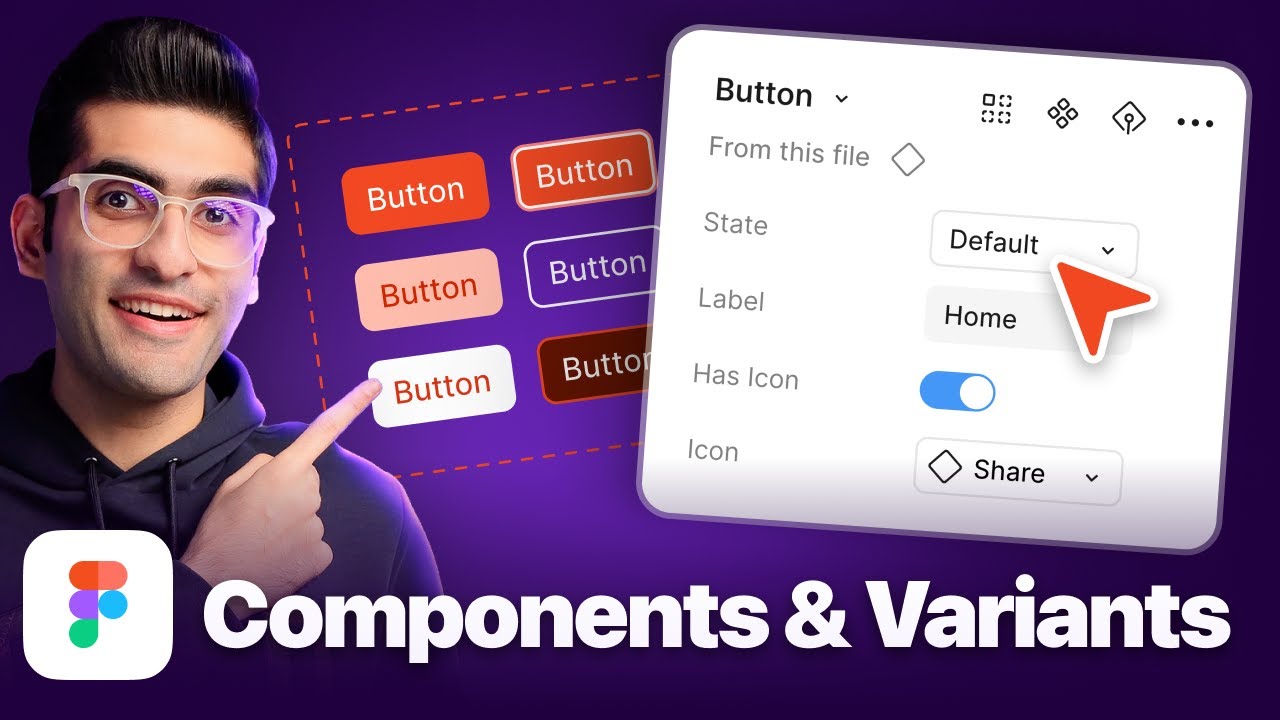
Tired of wrestling with clunky layouts and manually adjusting every element when you design? Unlock the power of Figma's Auto Layout and Components to build robust, scalable design systems. These essential features allow you to create dynamic, adaptable interfaces that respond beautifully to content changes and varying screen sizes, saving you immense time and effort.
Key Takeaways
- 1Unlock Figma's Auto Layout & Components for efficient design.
- 2Build dynamic, responsive interfaces faster than ever.
- 3Master essential techniques for scalable design systems.
- 4Create adaptable UI elements with practical video guides.
- 5Elevate your design workflow with these expert tutorials.
Who this is for
- If you're tired of tedious manual adjustments in your designs
- If you're looking to build truly scalable and consistent design systems
- If you're a UI/UX designer aiming for more efficient and responsive workflows
Start Learning with AI-Powered Video Summaries
Get instant summaries, ask questions, and turn any video into an interactive study session.
Try Querivo Free →Master the Fundamentals of Figma Auto Layout for Beginners
Ever feel like you're fighting your design software instead of working with it? When it comes to laying out elements, especially in Figma, Auto Layout is your secret weapon. This video is a fantastic starting point, really breaking down how to get Auto Layout working for you from the get-go. It explains the core modes – Freeform, Vertical, Horizontal, and the newly introduced Grid layout, making complex settings much easier to grasp. You'll see exactly how to tweak spacing, padding, and alignment, giving you precise control over your designs. Plus, understanding sizing options like "Hug Contents" and "Fixed Size" is key to creating flexible layouts, and this tutorial makes it super clear with practical examples.
This isn't just about theory; it’s about practical application. The creator walks you through simple, real-world examples, demonstrating how Auto Layout can instantly make your designs more organized and easier to manage, even with multiple Auto Layout layers. It’s surprisingly effective for getting a handle on responsive design principles right from the start. If you're new to Figma or Auto Layout, this is definitely the place to begin to understand its fundamental power and how to implement it effectively.
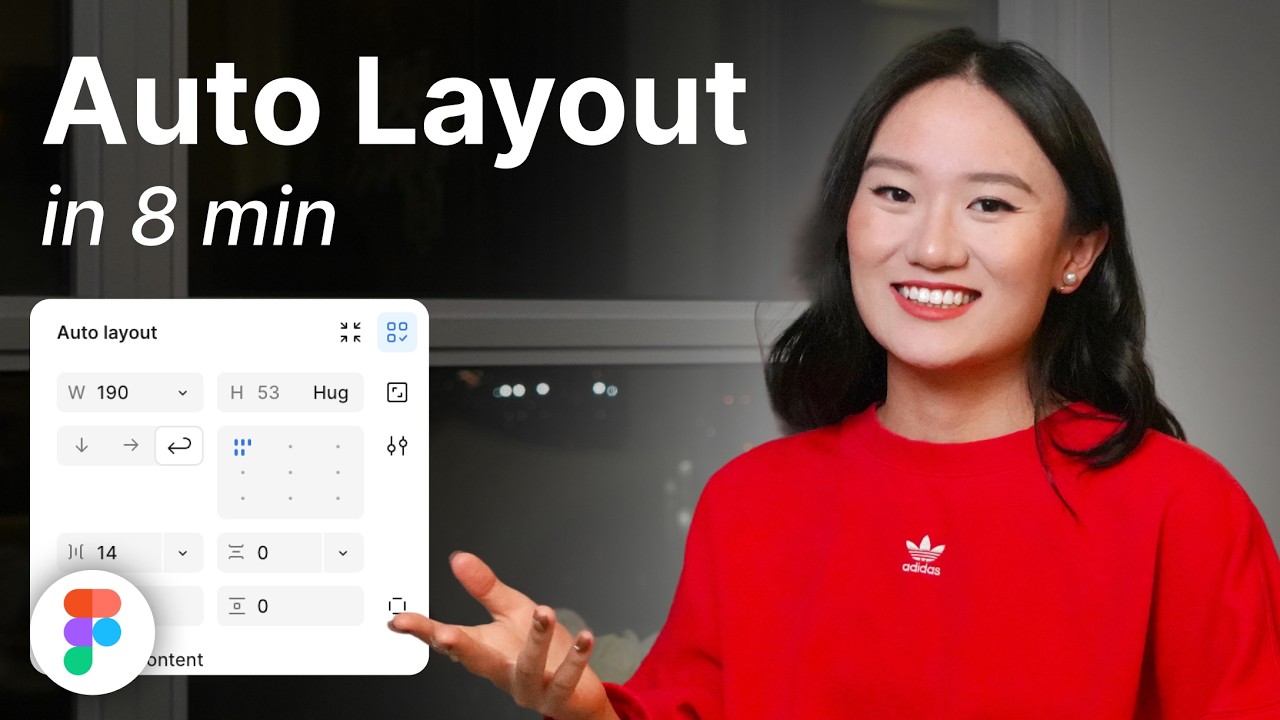
- Understand Figma Auto Layout modes: Freeform, Vertical, Horizontal, Grid.
- Learn to apply Auto Layout for immediate organizational benefits.
- Grasp essential sizing options like "Hug Contents" and "Fixed Size."
Study This Video Deeper
Get an AI summary and ask questions about confusing parts in real-time.
Open in Querivo →Build Responsive Card Components Without Plugins
Building a cohesive design system often means creating reusable components that can adapt to different contexts. This video dives into a really practical challenge: how to craft responsive card components using only Figma's Auto Layout, bypassing the need for any extra plugins. That's pretty neat, right? You’ll learn how to apply Auto Layout not just to simple elements, but to more complex structures like cards, making them dynamically resize. This is especially valuable because some plugins come with a cost, and this tutorial shows you how to achieve similar results with core Figma features.
The tutorial highlights the crucial difference between "Fill Container" and "Fixed Width" – a key concept for responsive elements. You'll also get to grips with "Wrap" behavior, which is essential for ensuring your components genuinely adapt to various screen sizes and content variations. It’s a hands-on approach, showing you the step-by-step process to build these adaptable designs from the ground up, directly within Figma. Mastering this manual method allows for greater control and a deeper understanding of how Auto Layout truly works, which is the kind of skill that genuinely speeds up your workflow and makes your design handoffs smoother.
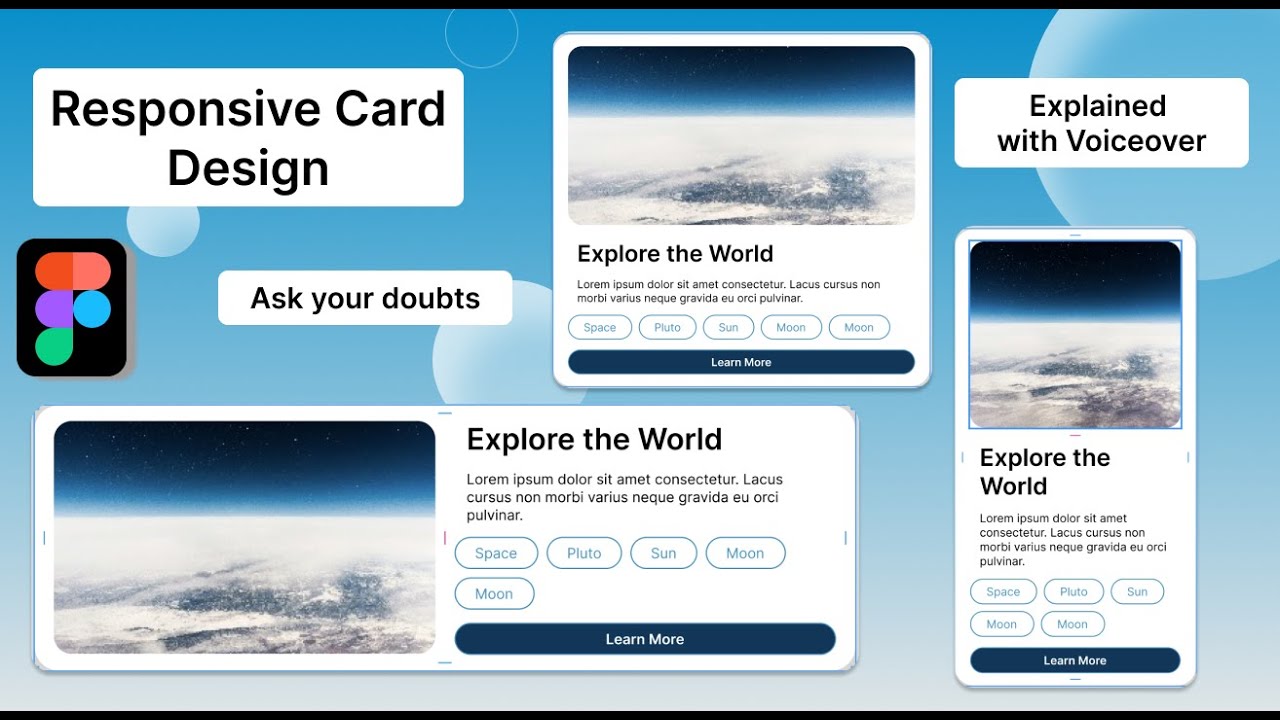
- Manually create responsive cards using only Figma Auto Layout.
- Implement "Fill Container" and "Wrap" for dynamic resizing.
- Achieve responsive design capabilities without relying on paid plugins.
Streamline Your Workflows with Responsive Rows and Tables
Okay, so you've got the hang of Auto Layout for individual elements and cards. What about structuring more complex interfaces, like rows and tables? This video tackles exactly that. It shows you how to use Auto Layout to group content efficiently, creating adaptable rows and tables that can automatically respond to changes in content. This is incredibly powerful for maintaining consistency across your designs and ensuring that your layouts behave predictably, regardless of the data they contain.
What's particularly cool here is the comparison to CSS Flexbox. If you're working with developers, understanding this connection is a game-changer for handoff. It makes the design's intent much clearer, bridging the gap between design and development and fostering better collaboration. You’ll also learn how to set dynamic spacing and padding, ensuring your UI structures are flexible and maintainable. It’s a really solid tutorial for anyone looking to build more complex, responsive layouts with Figma, moving beyond simple elements to robust interface structures.
- Build responsive rows and tables using Figma's grouping features.
- Understand the connection between Figma Auto Layout and CSS Flexbox for developer handoff.
- Implement dynamic spacing and padding for flexible UI structures.
Your Next Steps
By mastering Figma's Auto Layout and Components, you can significantly enhance your design efficiency, build consistent and scalable design systems, and create truly responsive user interfaces. These videos offer a fantastic roadmap to get you there, covering everything from the absolute basics of Auto Layout modes and sizing to more advanced responsive techniques for complex components and structures. Understanding these principles not only speeds up your design process but also leads to more robust and maintainable design systems that are easier to work with and update.
Your Action Items
- ☐Pick one video from above and watch it on Querivo
- ☐Ask questions and check summaries while watching without breaking your flow
- ☐Use the AI chat to clarify confusing parts and deepen understanding
- ☐Come back for more curated videos on topics you want to master
Start implementing these techniques today to transform your Figma workflow! Dive into the featured videos to practice these concepts. Experiment with Auto Layout on your own projects and explore the power of Components to build a robust design system that will serve you and your team for years to come.
Turn Any YouTube Video into an Interactive Lesson
Paste any video link, get an instant AI summary, and ask questions in real-time.
Try Querivo Free →Related Videos You Might Enjoy
Looking for more perspectives on this topic? Here are some additional videos worth checking out:
Figma Auto-layout Explained In 5 Minutes
This video explains Figma's Auto Layout feature, which automates the process of arranging and spacing elements in designs. It demonstrates how to group content, create responsive rows and tables using Auto Layout, and highlights its similarity to CSS Flexbox for streamlined development workflows.